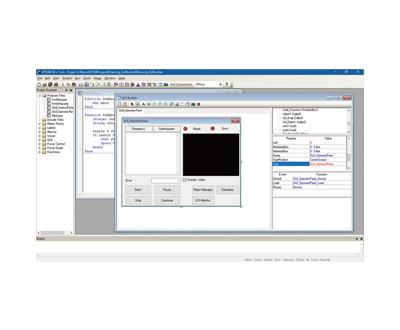
GUI Builder specification parameters
The purpose of the GUI Builder is to quickly and easily create simple GUIs within the popular Epson RC+ development environment. Many of our customers are currently using VB Guide (.Net library) and Microsoft Visual Studio. But for many applications, this is a bit of an overcorrection. To maintain Epson's leadership in ease of use, we created a GUI builder for creating simple GUIs.
Model introduction
The purpose of the GUI Builder is to quickly and easily create simple GUIs within the popular Epson RC+ development environment. Many of our customers are currently using VB Guide (.Net library) and Microsoft Visual Studio. But for many applications, this is a bit of an overcorrection. To maintain Epson's leadership in ease of use, we created a GUI builder for creating simple GUIs. Ease of use: Supports rapid creation of operator GUIs for robot system runs; Clicking the interface reduces development time; Tightly integrated within the Epson RC+ development environment; Supports commonly used controls: such as buttons, text boxes, combo boxes, etc.; Supported robot-specific controls include: video frames, LED controls; Powerful features: Handling events via SPEL+ code; Video frames allow easy dragging of Vision Guide video displays onto user forms; Epson LED controls support users in creating their own I/O monitors or interfaces. Dual-layer GUI development method: The GUI builder can be used for simple GUI development and simple systems; VB Guide (.Net library) can be used together with Microsoft Visual Studio; Both solutions feature dedicated tools for Epson robotics, reducing total development time
GUI Builder exclusive highlights
Supports quickly creating operator GUIs for robot systems; Clicking the interface reduces development time; Tightly integrated within the Epson RC+ development environment; Supports commonly used controls: such as buttons, text boxes, combo boxes, etc.; Supported robot-specific controls include: video frames and LED controls
Handling events through SPEL+ code; Video frames allow easy dragging of Vision Guide video displays onto user forms; Epson LED controls support users in creating their own I/O monitors or interfaces
The GUI builder can be used for simple GUI development and basic systems; VB Guide (.Net library) can be used together with Microsoft Visual Studio; Both solutions feature dedicated tools for Epson robotics, reducing total development time
1. Create a new form, click the Button control in the GUI builder toolbar, and drag it into the form. 2. Double-click this button to bring up the code editor. Add SPEL+ code you want to execute when you click a button from your app. 3 Add more graphic components, associated SPEL+ code, and other forms your application needs on the forms. 4. Run the app from the Epson RC+ window, or set the GUI to display automatically. You can also create RC+ conversations, as shown by the I/O monitor.
Design area – This is the area where the window is displayed during the design phase. Each open form is displayed on its own tab. Click the tab in the form browser or double-click the form within it to easily switch between forms. Toolbar Buttons - Contains various controls to be placed on GUI Builder forms. Supports many commonly used controls, such as buttons, tags, text boxes, radio buttons, checkboxes, and more. However, there are some unique Epson controls that can reduce development time for common robotic system projects. Some unique controls include the Video Frame control for displaying the Vision Guide image display window) and the LED control (for docking with Epson Robot I/O). Form Browser - Contains all windows of the current project
Vision and Automation Options · Series technical features
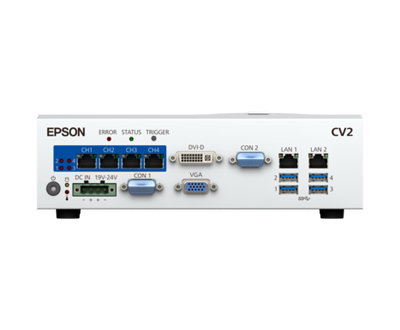
Epson offers a full set of options including visual guidance, force sensing, conveyor track tracking, and I/O expansion, deeply integrated with robot controllers to quickly build complete automation units.
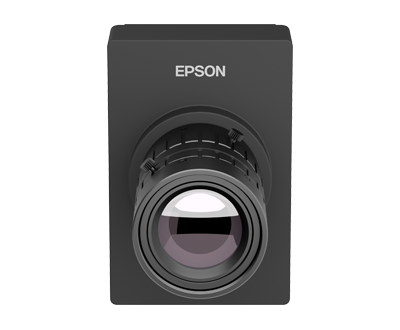
Epson's vision system guides positioning, detection, and recognition out of the box.
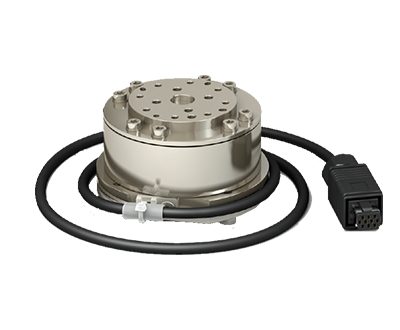
Force Sensor enables precise assembly and force control operations.
Conveyor Tracking supports dynamic grabbing of assembly line workpieces.
Extensive options for expansion I/O, analog gauge boards, and fieldbus.
Typical application scenarios
Common application processes for this model (click to view process details):
Vision and Automation Options · Other models in the same series
Compare load and reach to choose the model that best suits your process.
Need technical support or procurement for this model?
Whether it's model selection comparison, installation and commissioning, or maintenance of in-use equipment, you can contact Henghuan. Tell us about your processes, loads, and equipment status, and we will provide third-party technical support and solution recommendations.
Contact Henghuan Back to the full series